How CardJar Works: Add, Import, Organize and Scan Loyalty Cards
CardJar turns a physical card, membership number or saved screenshot into a locally stored loyalty-card entry. The workflow has four stages: capture the card, identify it, organize it in the jar, then present a precisely rendered code at checkout.
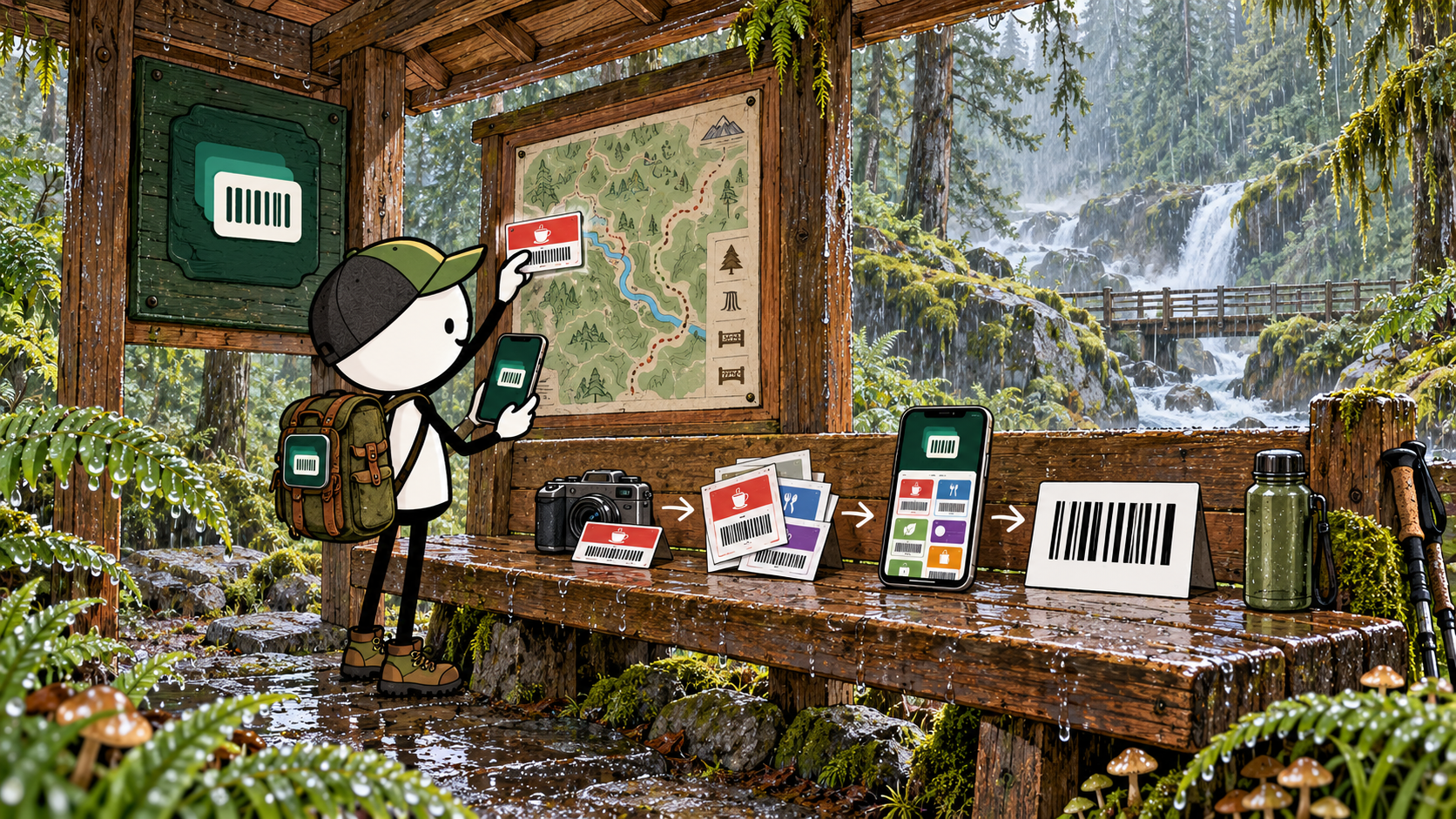
1. Add one card or import many
For a physical card, point the camera at the barcode. CardJar reads the symbol and the words around it. If the barcode is worn or unavailable, the membership number can be entered manually.
For an existing digital collection, select screenshots in bulk. CardJar scans each image and presents the detected cards for review before saving.
Both recognition paths run on the device. The image, extracted text and retailer match are not uploaded to CardJar.
2. Match the retailer
CardJar includes its retailer catalogue inside the app. The current CardJar catalogue recognizes 508 loyalty schemes in 12 countries: the United Kingdom, United States, Canada, Australia, Ireland, Germany, Poland, France, Spain, Italy, the Netherlands and Ukraine.
When the card matches a known scheme, CardJar can supply the retailer name, color and the label for the membership number. An unknown card still works; the user names it and CardJar gives it a custom identity.
Because the catalogue ships with the app, CardJar does not need to request a retailer logo when a card opens.
3. Organize the jar
Saved cards appear in a visual grid. Frequently used cards can be marked as favorites. On supported Android devices, Home Screen quick actions can surface up to three cards; when CardJar's biometric or PIN lock is enabled, those card names are withheld from the locked launcher menu.
Favorites also define the cards sent to the CardJar Wear OS app. The watch stores its own copy, allowing access when the phone is out of range.
4. Present the code at checkout
CardJar rebuilds the barcode from its module pattern rather than treating it as a resized picture. The app aligns edges to device pixels, places the symbol on a white plate and increases display brightness.
Supported drawn formats include EAN-13, EAN-8, UPC-A, UPC-E, Code 128, Code 39, Code 93, ITF, Codabar, QR, Aztec and Data Matrix. PDF417 can be scanned and stored but is not drawn in the current version.
The card remains available in aeroplane mode because the collection and rendering logic are local.
Sharing and backup
Sharing sends a copy, not a synchronized shared account. The card is placed in the fragment after the hash sign in the URL—a part browsers do not transmit to a server.
For backup, CardJar can seal the full collection into one encrypted file protected by a chosen passphrase. The user decides where that file is stored. Normal Android backup or device-to-device transfer can also carry app data through the operating system.
The boundaries are part of the workflow
CardJar does not create live retailer benefits, check point balances or reproduce dynamically changing membership codes. It stores and presents the card identity. If a scheme requires a fresh code, CardJar flags the issue so the official retailer app can remain in the routine.
See the actual shipping screens and download options at cardjar.app. For a complete account of local processing, backup, sharing and watch transfer, use the CardJar privacy policy.
Frequently asked questions
Can I type a card number manually?
Yes.
Does CardJar recognize retailers automatically?
It recognizes 508 published schemes; unlisted cards can be named manually.
Can I export every card together?
Yes. CardJar can create one passphrase-protected encrypted export file.
Is there a CardJar server holding my collection?
No. CardJar states that it has no server storing card collections.