How to Move Loyalty Cards from Stocard to CardJar Using Screenshots
CardJar can rebuild a loyalty-card wallet from saved screenshots. Select the images, let the app read each barcode and the words around it on the device, review the detected cards, then save them into CardJar. The screenshots, barcode data and recognized retailer names are not sent to a CardJar server.
Why screenshots are enough
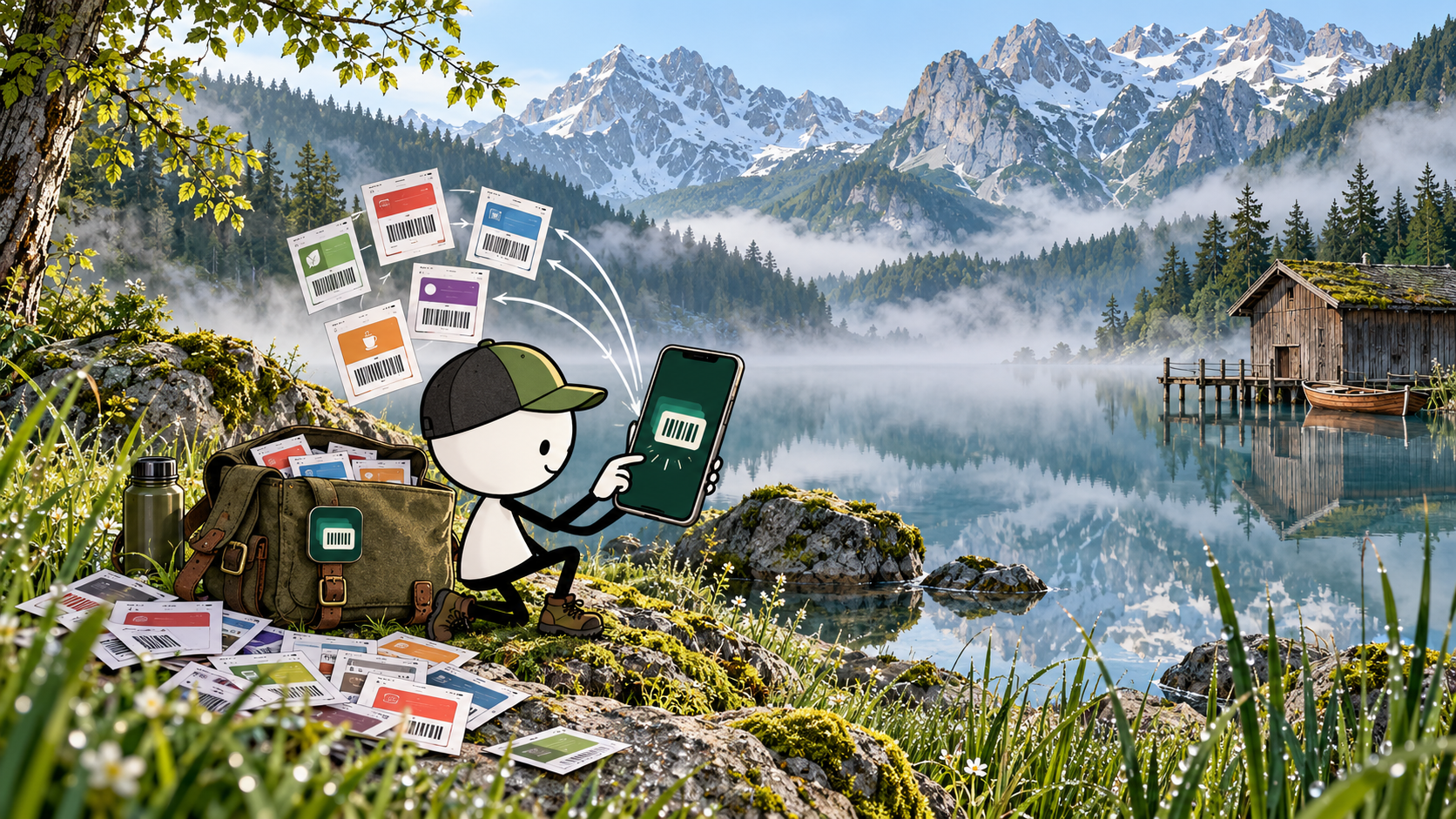
A Stocard export is not the only useful record of a loyalty card. A screenshot usually contains the barcode or QR code that represents the membership number. CardJar is built to read those saved images in bulk.
The import process examines each picture twice: once for the barcode and once for the surrounding words. CardJar compares that text with its retailer catalogue so a recognizable card can arrive with a useful name and color. Both readings happen locally, using models included in the app.
That matters when the original wallet has closed or the plastic cards are no longer available. A folder of screenshots becomes a practical migration source rather than a dead archive.
The CardJar migration workflow
- Gather the clearest screenshots of the cards you want to keep.
- Open CardJar and choose the screenshot import option.
- Select several screenshots in one pass.
- Review the detected barcodes and retailer names.
- Name any card that CardJar cannot identify automatically.
- Save the selected cards to the CardJar jar.
- Open the most important cards once and confirm that the barcode view is readable.
The CardJar coverage catalogue recognizes 508 loyalty schemes across 12 countries. A card outside that catalogue can still be stored; it receives a custom identity rather than disappearing from the import.
What CardJar preserves
The useful output is not the original conversation or the screenshot album. It is a working loyalty-card collection:
- the barcode or QR code needed at checkout;
- the associated retailer name when recognized;
- a clear card tile for retrieval;
- an on-device record that works without a network connection.
CardJar supports common one-dimensional and two-dimensional formats including EAN-13, EAN-8, UPC-A, UPC-E, Code 128, Code 39, Code 93, ITF, Codabar, QR, Aztec and Data Matrix. PDF417 can be scanned and stored, although the current app does not redraw that format.
Privacy during import
CardJar does not upload the screenshot to identify it. The image, extracted words and retailer match remain on the phone. With backup left off, the app makes no network requests. That is a material difference from a migration flow that depends on an account or cloud-side processing.
Screenshots should still be treated as sensitive files until the move is complete. Once the cards are working in CardJar, decide whether the original images still need to remain in the photo library.
After the move
Pin the cards used most often as favorites. On Android, favorites can also be sent to CardJar's Wear OS app, which keeps its own copy for use when the phone is out of range. For an additional portable copy, CardJar can export the collection as one encrypted file protected by a passphrase chosen by the user.
Open CardJar to review the current app, supported countries and download links. The dedicated CardJar privacy policy explains exactly what leaves the device and what does not.
Frequently asked questions
Does CardJar need my Stocard login?
No. The screenshot-import workflow uses images already stored on the device.
Can CardJar import several screenshots together?
Yes. The official interface shows a bulk import flow that reads barcodes from several selected pictures and lets the user review them before saving.
What happens when a retailer is not recognized?
The card can still be stored and named manually.
Does CardJar upload the screenshots?
No. CardJar states that barcode and text recognition for screenshot import run on the device.
Verified sources